
How to Use Google Chrome to Translate the VouchedFor Review Form
If English isn’t your first language, you can use Google Chrome to automatically translate the VouchedFor review form. Here's how:
1. Open the Review Form in Google Chrome
Use the link you’ve received (e.g., your adviser’s VouchedFor review link) and open it in the Google Chrome browser.
2. Use Chrome’s Translate Feature
Look for the translation icon (📘) in the address bar and click it.
If no icon appears, click the three dots (⋮) in the top right corner, select Translate, and choose your language.
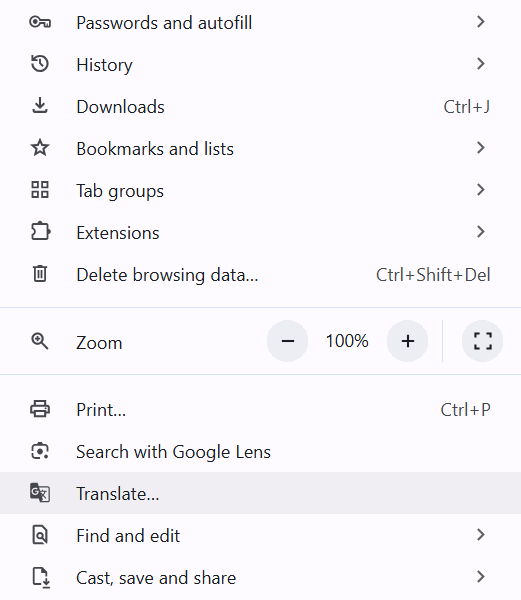
Once selected, the page will update, displaying all questions and instructions in your preferred language.
3. Review the Translated Form
The form questions including star rating, answer prompts, and text fields will be shown in your chosen language for easy understanding.
4. Fill in the Form
Complete the form directly in Chrome while it’s translated.
You can type your responses in your native language or in English Chrome will translate the interface back to English for the adviser.
5. Submit the Form
When done, click Submit (which will also be translated).
The review will be received in English